Using mittwald AI Hosting with TYPO3
Unlike Drupal or WordPress, TYPO3 does not ship an AI provider abstraction in its core. AI features come from extensions, and each extension decides for itself how it talks to an AI provider.
Most of them build on Symfony AI, which uses bridges to connect to individual providers. mittwald/symfony-ai-platform is the official bridge for mittwald AI Hosting, so any TYPO3 extension that can work with Symfony AI bridges can also use mittwald-hosted models. The Symfony guide describes the bridge itself in more detail.
This guide describes how to set up mittwald AI Hosting with the following extensions:
- AiM — the central AI layer for TYPO3, by b13
- more to follow; open an issue to add your own
Prerequisites
All integrations described here require:
- A TYPO3 installation in Composer mode
- PHP 8.2 or later, as required by the mittwald bridge
- A mittwald AI Hosting API key
If you don't have an API key yet, follow the mittwald AI Hosting access guide to generate one through your mStudio dashboard.
AiM
AiM by b13 is currently the de-facto standard for AI in TYPO3. Other extensions don't talk to an AI provider directly; they ask AiM for a capability such as text generation, translation or alt text for an image, and AiM decides which configured provider and model answers. Credentials, budgets, rate limits and request logs are managed in one place in the TYPO3 backend.
AiM does not include any AI providers itself. Instead, it automatically discovers every installed Symfony AI bridge, including the one for mittwald AI Hosting.
This section covers installation and setup with mittwald AI Hosting. For everything else — governance, tone of voice, the request pipeline and using AiM from your own extension — refer to the AiM documentation.
Requirements
In addition to the general prerequisites, AiM requires:
- TYPO3 12.4, 13.4 or 14
- The
sodiumPHP extension, which AiM uses to encrypt stored credentials
Installation
Install AiM together with the mittwald bridge. Run the following commands in your TYPO3 project directory:
user@ssh $ composer require b13/aim mittwald/symfony-ai-platform
user@ssh $ vendor/bin/typo3 extension:setup
user@ssh $ vendor/bin/typo3 cache:flush
The first command installs both packages. The second command creates the database tables AiM needs, and the third makes sure AiM discovers the newly installed bridge.
Configuration
You configure the mittwald provider in the AiM backend module. Where you find it depends on your TYPO3 version:
- TYPO3 14: Administration -> AiM -> Providers
- TYPO3 13: Admin Tools -> AiM -> Providers
- TYPO3 12: Admin Tools -> Providers
Step 1: Verify that the bridge is installed
In the Providers module, click on Available providers. The list should contain the Symfony AI: Mittwald provider along with the models it offers:
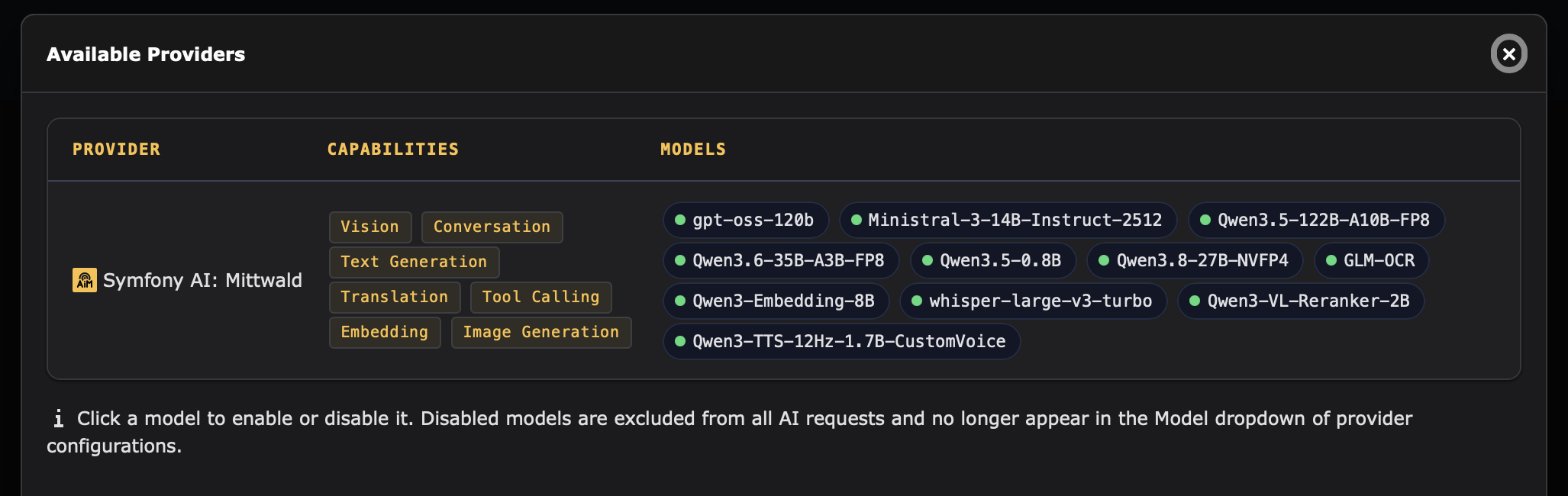
If the provider is missing, check that mittwald/symfony-ai-platform is installed and flush the TYPO3 caches.
In this dialog, you can also click a model to disable it. Disabled models are excluded from all AI requests and no longer appear in the model selection of a provider configuration.
Step 2: Create a provider configuration
Close the dialog and click on New Configuration. Fill in the form as follows:
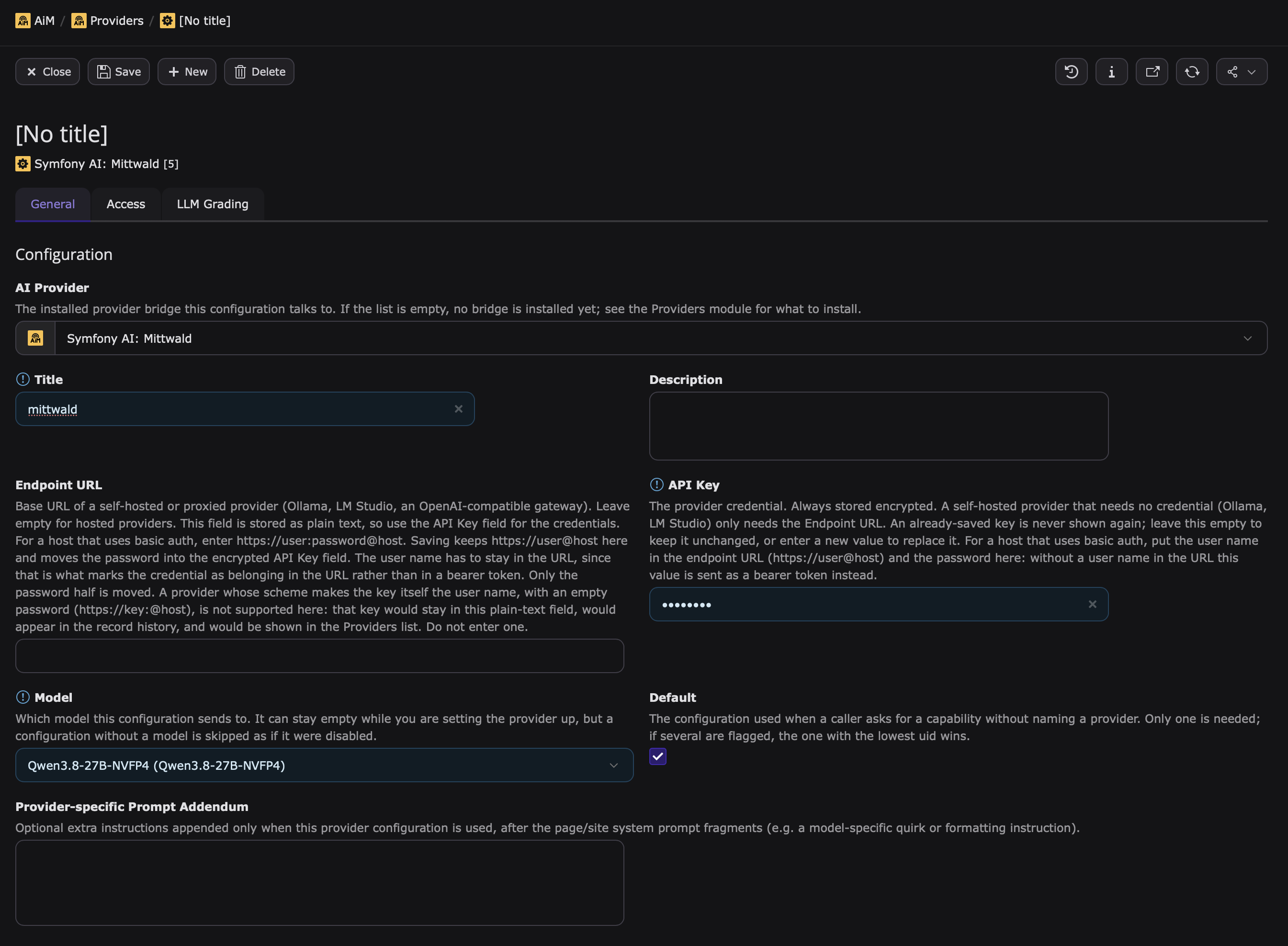
- AI Provider: Select Symfony AI: Mittwald.
- Title: Give the configuration a descriptive name, for example "mittwald".
- Endpoint URL: Leave this field empty, unless you use dedicated AI Hosting.
- API Key: Enter your mittwald AI Hosting API key. AiM always stores this value encrypted, and never shows it again after saving.
- Model: Select the model this configuration should use. The list contains all models from the bridge's model catalog; see the available models documentation for the capabilities of each model.
- Default: Check this box to use this configuration whenever an extension asks AiM for a capability without naming a specific provider.
Save the configuration. The Access and LLM Grading tabs let you restrict the configuration to specific backend user groups and set up quality grading; refer to the AiM documentation for these options.
When the selected model does not support a requested capability, AiM automatically switches to another model of the same provider, using the same API key — for example, to Qwen3-Embedding-8B when an extension requests embeddings from a configuration that uses a chat model. A single configuration therefore covers all capabilities that mittwald AI Hosting supports through AiM. You can turn this auto model switch off per configuration if you want to pin a configuration to its model.
Step 3: Test the configuration
To check that everything works, send a test request using the aim:test command:
user@ssh $ vendor/bin/typo3 aim:test text --prompt "Write a haiku about TYPO3"
The command sends the request through AiM's full pipeline and prints the response along with the model used, token usage and timing. To test a specific model instead of the default configuration, pass it using the -p option, for example -p "mittwald:gpt-oss-120b".
Every test request also shows up in AiM's Request Log module.
Configuring the provider in site settings
Instead of creating a provider configuration in the backend, you can also define one in your site's config/sites/<identifier>/settings.yaml. This is useful if you want to use different configurations for different sites in a multi-site TYPO3 installation, or if you want to keep your configuration in version control:
ai:
  provider: mittwald
  apiKey: "%env(MITTWALD_AI_API_KEY)%"
  model: gpt-oss-120b
Use mittwald as the provider identifier, and any model ID from the available models as model.
Keep in mind that site settings are an alternative configuration source that has to be requested explicitly. AiM's regular API and backend modules use the provider configurations from the backend. Site settings are only used by extensions that resolve their provider from the site settings, and by the aim:test command when you pass the --site option:
user@ssh $ vendor/bin/typo3 aim:test text --site <identifier> --prompt "Write a haiku about TYPO3"
For all available settings, see the AiM provider configuration documentation.
Supported operations
AiM exposes the following mittwald AI Hosting operations to TYPO3 extensions:
| Operation | Supported |
|---|---|
| Text generation | |
| Conversation | |
| Translation | |
| Tool calling | |
| Vision (image input) | with models that accept images |
| Embeddings | |
| Speech-to-text | ⏸️ not available in AiM |
| Text-to-speech | ⏸️ not available in AiM |
| Reranking | ⏸️ not available in AiM |
| Image generation | ⏸️ not offered by mittwald AI Hosting |
The bridge also knows the speech-to-text, text-to-speech and reranking models, which is why they show up in the list of available models. AiM does not offer these operations to other extensions, though. If you need them, use the Symfony AI bridge directly from your own code.
Dedicated AI Hosting
If you use dedicated AI Hosting, your reserved capacity is served from a customer-specific subdomain. Enter it in the Endpoint URL field of the provider configuration, or as endpoint in your site settings:
https://your-company.llm.aihosting.mittwald.de
Enter the URL without the /v1 suffix; the bridge appends the API version and path itself.
Using vector databases
mittwald AI Hosting provides the embedding model, but not a managed vector database. To build semantic search or RAG features on top of the embeddings generated by Qwen3-Embedding-8B, you need a vector database of your own.
You can run one directly in your mStudio project using container hosting; pgvector, Qdrant and ChromaDB are available as container templates. The GLM-OCR guide walks through a complete ingestion and retrieval pipeline using these components.
Usage limits
The mittwald AI Hosting service has usage limits based on your account tier.